· RNITS Microsoft 365 · 14 min read
✦ Switch to AI viewLoading…
Disabled AD Users Still Active in Entra? The Source Anchor Gotcha
A 100-user MA company's Entra sync silently failed for six months. Disabled AD users kept their M365 licenses. Here's the hidden default that caused it.

The first sign was a license report.
A 100-user professional services firm in Massachusetts ran a routine quarterly check on their Microsoft 365 spend. The number did not match the headcount. There were nineteen active, licensed users in Entra ID who had been disabled in on-prem Active Directory months earlier, but Entra Connect was never pulling the changes through. Some had left the company. Some had moved roles and shed the license. All of them had been correctly handled in AD and dropped into the company’s no-sync OU. None of that had reached the cloud.
That kind of drift does not happen overnight. It had been happening for six months.
The thing that hid it was the offboarding process. Their workflow, and ours when we run an offboarding, is to block sign-in first, hold the account for a week or two while leadership confirms nothing was missed, and only then disable the account, move it to the no-sync OU, and remove the license. The block on sign-in immediately stopped the user from logging in, so from a security perspective the doors were closed. The license cleanup was supposed to happen on the back half of the workflow. It never did, because Entra Connect was not actually pulling the changes through. The accounts looked dead from the user’s perspective and stayed alive from the billing perspective.
We have seen this exact pattern at three customers in the last twelve months. It is almost always the same root cause. It is the kind of misconfiguration that the Entra Connect installer can introduce on day one and then quietly hide for years. This post walks through what actually goes wrong, why the wizard is wired to make it worse during a fresh install, and how to fix it without breaking sync for everyone who is currently working fine.
What the symptoms actually look like
If your Entra Connect is in this state, the failure mode is specific. New users sync without issue. Password changes flow. Group membership changes flow. Most attribute updates flow. Everything that touches an existing object behaves the way the documentation says it should.
What does not work, or works inconsistently, is anything that asks Entra Connect to re-link a user. That includes:
- Disabling an on-prem account and moving it to a no-sync OU. The cloud copy should soft-delete and the license should free up. Instead, the cloud copy stays active and licensed.
- Renaming a user after a marriage, divorce, or department move. The on-prem account gets a new sAMAccountName. The sync engine sees a different identifier and either creates a duplicate cloud account or fails to associate the rename with the existing cloud user.
- Migrating a user between AD forests or OUs in a way that changes their sAMAccountName. Same problem. The link breaks.
- Restoring a previously deleted on-prem user from backup. The cloud side does not recognize the restored object as the same user it had before.
If you sit on top of these symptoms long enough, you end up with a tenant full of stale licensed users, occasional duplicate accounts, and a sync engine that looks healthy in the connector status pane but is silently failing to do the one job that matters most for offboarding hygiene.
The frustrating part is that none of this throws an obvious error. Entra Connect Health will report green. The sync schedule will run on its fifteen-minute cadence and complete. The PowerShell Get-ADSyncConnectorRunStatus will look fine. The thing that is broken is which on-prem attribute is being used to identify the user, and that decision was made silently during installation.
The root cause: sourceAnchor defaulted to sAMAccountName
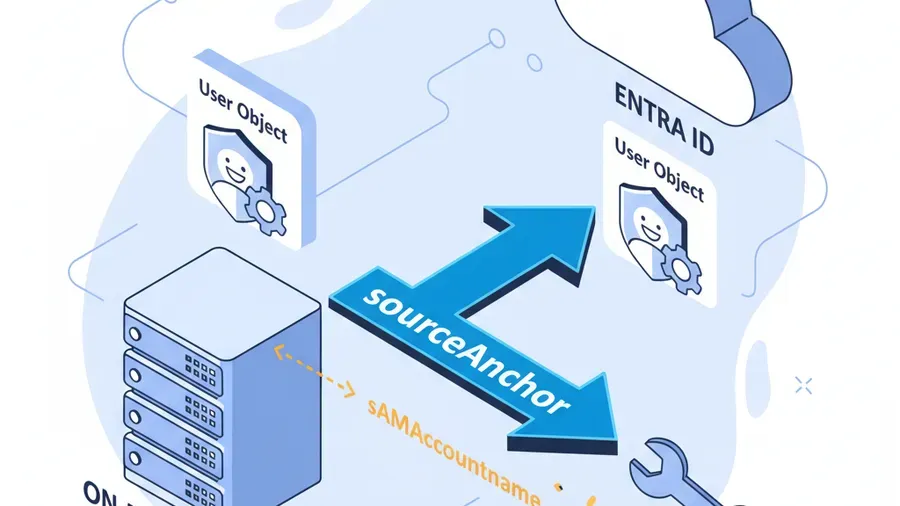
Entra Connect needs one durable identifier per user to tie the on-prem AD object to its cloud counterpart. Microsoft calls this the sourceAnchor, and once it gets serialized into Entra ID it becomes the ImmutableId on the cloud user object. The two are the same value, just named differently depending on which side of the fence you are looking at.
The whole identity model leans on that anchor being immutable. If the anchor changes, the link breaks, and the cloud side has no way of knowing that the on-prem user it was synced to last week is the same object it is being asked to look up this week.
The modern, correct attribute for sourceAnchor is ms-DS-ConsistencyGuid. It is GUID-based. It does not change when a user is renamed, moved, or migrated between forests. Microsoft’s own documentation has called it the recommended source anchor since 2017. Every well-configured Entra Connect deployment in 2026 should be using it.
The problem is that the installer does not always pick it. During a Custom Installation, even when you select the option labeled “Let Entra decide on the source anchor,” the wizard will sometimes fall back to sAMAccountName instead. sAMAccountName is the pre-Windows 2000 logon name. It is what most admins and end users actually think of as “the username.” It is also mutable. Rename a user in AD and their sAMAccountName changes. The sourceAnchor is supposed to never change. Putting sAMAccountName in that role is fundamentally broken. It works fine for users who never rename or move, and silently fails the moment a user’s identity attribute changes.
Worse, in the wizard’s “select a specific attribute” dropdown, ms-DS-ConsistencyGuid is sometimes missing entirely. You cannot pick it because the installer does not show it. The default lands on sAMAccountName. The admin clicks Next. The sync runs successfully. Six months later the license report does not match.
Why the wizard hides the right answer
This is the part that catches even experienced admins. The Entra Connect installer hides ms-DS-ConsistencyGuid on purpose. It is not a bug. It is a defensive behavior wired into the wizard, and it triggers in two situations:
The attribute is already populated in your AD. When the wizard launches, it performs an LDAP search across your directory looking for any objects that already have a value in ms-DS-ConsistencyGuid. If it finds even one, it interprets that as evidence that another application (an older sync tool, a third-party identity product, a previous Entra Connect install that was uninstalled but not cleaned up) might be relying on that attribute. To prevent a collision, the wizard hides the attribute from the dropdown.
The connector account does not have write permission to the attribute. The Entra Connect connector account needs both read and write access to ms-DS-ConsistencyGuid on all the user objects it will sync. If the wizard does not see those permissions, it hides the attribute rather than letting the admin pick something it cannot maintain. This is more common than it sounds. Many AD environments have tightened delegated permissions over the years and the connector account ends up with read-only access to extended attributes.
In both cases the wizard’s logic is “I am not sure I can use this safely, so I will not offer it.” The intent is reasonable. The effect is that the admin does not even know the right answer existed, picks sAMAccountName because it is the only thing in the list, and ships a broken sync.
The fix: the /SkipLdapSearch switch
Microsoft buried a flag in the installer that bypasses the attribute-hiding behavior. It is undocumented in the wizard UI and only mentioned in deeper Entra Connect technical articles. Running the installer with /SkipLdapSearch tells the wizard to skip the precautionary LDAP check and show every attribute regardless of what it finds in your directory.
The fix is straightforward, but the order of operations matters because of how cloud users get re-linked.
Step 1. Audit and back up the current state. Before you change anything, document which users currently have which sAMAccountName, and pull the existing ImmutableId for every cloud user. You need this in case the soft-match step does not behave the way you expect on a small number of accounts. A simple PowerShell snippet for the cloud-side capture:
Connect-MgGraph -Scopes "User.Read.All"
Get-MgUser -All -Property "Id","UserPrincipalName","OnPremisesImmutableId","DisplayName" |
    Select-Object UserPrincipalName, DisplayName, OnPremisesImmutableId, Id |
    Export-Csv -NoTypeInformation -Path "C:\backup\entra-immutableids-$(Get-Date -Format yyyyMMdd).csv"
Keep that CSV. If anything goes sideways, that file lets you restore an ImmutableId by hand.
Step 2. Verify the connector account has write access to ms-DS-ConsistencyGuid. Run dsacls against the OUs you sync, or use the GUI in Active Directory Users and Computers with advanced features turned on. The connector account, usually named MSOL_xxxxxxxxx, needs write permission on the attribute for every user object in scope. If the permission is missing, grant it before you reinstall the wizard. The Microsoft documentation has a specific PowerShell helper, Set-ADSyncMSOLAccountPermissions, that can do this in one shot. Run it.
Step 3. Uninstall the existing Entra Connect. Use the standard Add/Remove Programs uninstall. Do not delete the database manually. Let the uninstaller handle the cleanup. Reboot the sync server.
Step 4. Reinstall using /SkipLdapSearch. Open Command Prompt as Administrator and launch the installer with the flag:
"C:\Program Files\Microsoft Azure Active Directory Connect\AzureADConnect.exe" /SkipLdapSearchWhen the wizard comes up, choose Custom Installation, configure it to match your existing setup, and on the Uniquely identifying your users page select Choose a specific attribute. ms-DS-ConsistencyGuid will now be visible in the dropdown. Pick it.
Step 5. Let the initial sync run, then watch for soft-match behavior. When the sync engine first runs with the new source anchor, it will start populating ms-DS-ConsistencyGuid on every on-prem user that does not already have one. For users whose existing ImmutableId in the cloud is the base64-encoded sAMAccountName (the broken state), the sync will not soft-match automatically. You will see sync errors that say “an existing object with the same proxyAddress already exists” or similar. Those errors are the trigger for step six.
Step 6. Clear the ImmutableId on existing users to allow a soft match. This is the half of the fix that most write-ups skip. For every cloud user that was synced under the old sAMAccountName-based anchor, you have to clear their ImmutableId in Entra ID so the sync engine can re-link them using the new GUID. There is no other way to repair the link without deleting and recreating the user, which would break their licenses, mailbox, OneDrive, and Teams association.
A PowerShell snippet for clearing a single user, with a -WhatIf variant for safety:
# SAFE: dry run for a single user
Set-MgUser -UserId "alice@contoso.com" -OnPremisesImmutableId $null -WhatIf

# REAL: single user
Set-MgUser -UserId "alice@contoso.com" -OnPremisesImmutableId $null
For a bulk operation across all currently-synced users, you can pipe the export from step one through the cmdlet, but do this in batches, not all at once, and confirm the on-prem side has a populated ms-DS-ConsistencyGuid for the user before you clear the cloud-side ImmutableId. If you clear the ImmutableId in the cloud and the on-prem side is not ready to re-link, you will get an unmanaged cloud account.
# Bulk clear — only run after on-prem ms-DS-ConsistencyGuid is confirmed populated
$users = Import-Csv "C:\backup\users-to-rematch.csv"
foreach ($user in $users) {
    Write-Host "Clearing ImmutableId for $($user.UserPrincipalName)"
    Set-MgUser -UserId $user.UserPrincipalName -OnPremisesImmutableId $null
    Start-Sleep -Seconds 2  # avoid throttling
}
After the ImmutableIds are cleared, force a sync cycle:
Start-ADSyncSyncCycle -PolicyType DeltaThe sync engine will re-link each cloud user to the on-prem object using ms-DS-ConsistencyGuid. From that point on, renames and moves and disables flow correctly. Users that were stuck in the broken state, including the disabled-but-still-licensed accounts that started this whole investigation, will finally process the way they should have been processing all along.
What this means for your monthly bill
In the MA customer’s case, the nineteen ghost-licensed users worked out to a meaningful chunk of their M365 bill that had been sitting on the wrong side of the ledger for months. License cleanup recovered that immediately. More importantly, the next round of offboardings actually flowed end-to-end, which means the security posture caught up with what the IT team thought they had been delivering all along.
This is the kind of thing that a quarterly access review will catch, eventually. But the gap between “user was disabled in AD” and “license was removed in Entra” is the gap an attacker exploits if those credentials get reused or the sign-in block gets weakened by a misconfiguration. Six months of drift is six months of accounts that, on paper, look like terminated employees and, in reality, still have an active cloud presence with all the standing access that comes with it.
If you are running Microsoft 365 managed services for a small or mid-sized business, this single configuration check is worth more than most of the routine maintenance items on a typical MSP punch list. We add it to every onboarding now.
How to tell if you have this problem right now
You do not have to reinstall anything to find out. Two quick checks:
Check the configured source anchor. On the Entra Connect server, open the Synchronization Service Manager, look at the on-prem AD connector properties, and read the source anchor attribute. If it says sAMAccountName, you are exposed. If it says mS-DS-ConsistencyGuid, you are fine.
# Faster check via PowerShell
Get-ADSyncGlobalSettings | Select-Object -ExpandProperty Parameters |
    Where-Object { $_.Name -eq "Microsoft.SourceAnchorAttribute" } |
    Select-Object Name, Value
Spot-check a known-disabled user. Pick a user that you disabled in on-prem AD more than a sync cycle ago and moved out of the sync scope. Look them up in Entra. If the cloud account is still active and licensed, your sync is not picking up the offboarding. That is the same symptom the MA customer hit.
If either check trips, schedule the reinstall. It is a couple of hours of work plus one careful PowerShell pass for the existing-user re-match, and the result is an identity layer that actually does what the documentation claims it does.
Notes for our NH and MA customers
We work with small businesses across New Hampshire and Massachusetts, and the Entra Connect deployment we inherit when we onboard a new client has been in this misconfigured state more often than not. Often the original installer was a contractor who clicked through the wizard once five years ago, picked the default it offered, and never came back to verify it. The customer never knew, and sync looked healthy on the surface right up until somebody finally went looking for the drift.
If you are not sure how your tenant was configured, or you have noticed weirdness around offboarding-to-license-removal that nobody has been able to explain, this is the kind of thing we audit during a free cyber security audit. Identity hygiene is not glamorous, but it is one of the controls that cyber insurance carriers and compliance frameworks both want documented and verifiable. Getting it right has downstream value across security, compliance, and your monthly licensing bill.
We are the un-MSP. When we find something like this, we fix the configuration. We do not sell you a new product to paper over it.
What to check this week
Entra Connect’s installer can land your tenant in a quietly-broken state on day one, and the failure mode is the kind that does not surface until you go looking for it. The fix is real but specific: reinstall with /SkipLdapSearch, pick ms-DS-ConsistencyGuid as the source anchor, verify the connector account permissions, and carefully re-link the existing cloud users by clearing their ImmutableIds in the right order.
If you suspect your sync is in this state, or you have ever seen disabled AD users stay licensed in Entra long after they should have been gone, the audit is worth running. Most environments we touch are one wizard reinstall away from a clean identity layer. The work is in doing it correctly the first time.
If you want a second set of eyes on your Entra Connect configuration, that is exactly the kind of thing we do every week. Schedule a free audit or get in touch here.
The Rnits Company. The un-MSP. (978) 226-8931.