· RNITS Microsoft 365 · 13 min read
✦ Switch to AI viewLoading…
Your Clients Are About to Get "Access Denied" on Files You Shared Them
Microsoft is retiring SharePoint one-time passcodes through November 2026. Older links to clients and vendors will start failing. Here is the 30-minute fix.

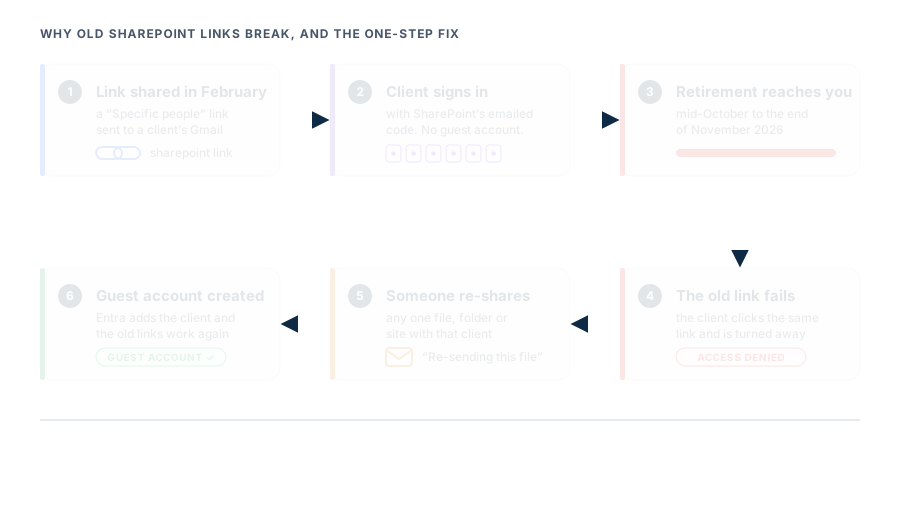
A partner at a small CPA firm in Nashua shared a tax-document folder with a client back in February. The client opened it the way they always had: clicked the link in the email, typed in the six-digit code SharePoint sent them, and got in. No account, no password, no fuss.
Sometime in the next few weeks, that same client is going to click that same link and get an “access denied” page. The partner will not have changed anything. The client will call the office, the office will call whoever handles IT, and someone will spend an afternoon figuring out that Microsoft quietly retired the way that link worked.
That is the SharePoint one-time passcode retirement, and it is landing in small-business tenants right now. The fix is not hard. The part worth thinking about is what Microsoft is replacing it with, because that changes who lives in your directory.
What Microsoft is actually changing
For years, when you shared a SharePoint or OneDrive file with someone outside your company using a “Specific people” link, SharePoint handled their sign-in itself. It emailed them a one-time passcode, they typed it in, and they were in. Microsoft calls this SPO OTP (SharePoint Online one-time passcode). The outside person never existed anywhere in your Microsoft 365 directory. They were just an email address attached to a link.
Microsoft is retiring that system and moving all external sharing onto Microsoft Entra B2B, its standard way of handling outside users. Under B2B, every external person you share with gets a guest account in your directory. They still sign in with an emailed code if they do not have a Microsoft or work account, but now that code comes from Entra, and they show up as a real user object you can see, control, and remove.
The official notice is Message Center post MC1243549, and the timeline has moved more than once. The update Microsoft published on October 1, 2026 says:
- Phase 1 is done. New external shares already create guest accounts automatically. If you shared something with an outside person in the last few months, they almost certainly already have one.
- Phase 2 starts mid-October 2026. This is the actual retirement of the old SharePoint passcode.
- Completion is expected by the end of November 2026 for standard commercial tenants.
- Government clouds (GCC, GCC High, DoD) are excluded for now. Microsoft says their dates will come later in Message Center.
- You cannot opt out. The old
EnableAzureADB2BIntegrationsetting stopped controlling this in May, and the option to disable B2B integration is being removed.
If you have read an article saying this happens in July or August, that article is out of date. Microsoft pushed it back. As of this writing, mid-October through November is the window.
Which links break, and which do not
This is where most of the confusion lives, so here it is plainly.
Will keep working:
- Links shared with outside people who already have a guest account in your tenant. Nothing changes for them.
- Anything shared after Phase 1 rolled out to your tenant, since those shares created a guest account at the time.
- Sharing between your own employees. This change only touches external users.
Will start failing:
- “Specific people” links shared before Phase 1 with someone who signed in using the SharePoint passcode and never got a guest account. Once the retirement reaches your tenant, that person gets “access denied” on the old link.
The cruel detail is the age of the affected links. They are the old ones. The client folder from last tax season. The shared drawings folder you set up with a subcontractor in 2024. The quarterly report folder your outside bookkeeper opens four times a year. Nobody thinks about these until someone needs them, which means the failure shows up at the worst possible time, from the outside, as a phone call.
Microsoft’s notice does not address “Anyone” links (the ones that work for whoever has the URL) or organization-only links, and neither type uses the SharePoint passcode in the first place. If your business relies on “Anyone” links for client delivery, that is a separate conversation, and frankly a riskier habit than the one being retired.
Who notices first
Not you. That is the whole problem with this change: the person it breaks for does not work for you.
In the small businesses we support around New Hampshire and Massachusetts, the people most likely to hit the wall are:
- Clients of professional firms like accountants, attorneys, and financial advisors who share document folders per client, per engagement, sometimes per year.
- Outside auditors and bookkeepers who open the same folder a few times a year and will try right around year-end close.
- Subcontractors and vendors in construction and manufacturing who were sent drawings, specs, or submittals through OneDrive.
- Patients’ outside providers or billing partners in healthcare practices that share records folders externally (and if you are doing that through plain OneDrive links, it deserves a HIPAA look anyway).
- Board members or investors using personal Gmail or Yahoo addresses.
Each of these people will see a Microsoft error page with no context. Some will email you. Some will assume you revoked their access on purpose. A few will just quietly not get the file they needed. None of those outcomes is great for a business that trades on being easy to work with.
The 30-minute check to run before it hits your tenant
You do not need a project plan for this. You need someone who can log into the admin centers, and about half an hour.
1. Find who you have been sharing with
Pull a list of what is shared externally. SharePoint has sharing reports per site, OneDrive has a sharing report per user, and the SharePoint admin center can show external users across the tenant. You are looking for the outside people who matter: active clients, current vendors, your auditor.
Then open the Entra admin center, go to Users, and filter by user type Guest. Compare the two lists. Anyone you actively share with who is not in the guest list is a person whose old links are about to break.
2. Re-share to the people who matter
This is the simplest fix, and Microsoft calls it out directly: when someone in your company re-shares at least one file, folder, or site with that outside person, Entra creates their guest account, and access to the things previously shared with them comes back.
For a small business, this usually means a handful of re-shares, done by the employee who owns the relationship. “Hi, Microsoft is changing how our file links work, so I’m re-sending this” is a perfectly good email. It also gives you a natural moment to ask whether that client still needs access to everything you shared in 2023.
If you have dozens of external collaborators, an admin can create guest accounts in bulk instead. That is worth doing only if you genuinely have that many active outside users.
3. Make sure guest invitations are actually allowed
Since every external share now creates a guest account, your Entra settings have to allow the right people to invite guests. Check Entra’s external collaboration settings. If guest invitations are locked down to admins only, your staff’s shares will fail instead of creating accounts. Either loosen the setting appropriately or assign the Guest Inviter role to the people who share externally as part of their job.
4. Leave email one-time passcode turned on in Entra
Here is the confusing part. Entra has its own email one-time passcode feature for guests, separate from the SharePoint one being retired. That one is how a client with a Gmail address signs in as a guest without creating a Microsoft account. It is on by default. Microsoft’s guidance is to keep it on. Do not turn it off thinking you are cleaning up the old system.
5. Tell your staff, in one paragraph
Write three sentences to your team: outside people may report “access denied” on old links between now and the end of November; the fix is to re-share the file to them; tell IT if a re-share does not work. That turns a confusing support call into a ten-second fix the account owner can handle.
The side effect nobody is talking about: guests now live in your directory
The passcode retirement is a reasonable security improvement. The old SharePoint passcode lived outside your identity controls. You could not apply your sign-in policies to those users, could not see them in one place, and could not easily remove them. Moving everyone to guest accounts fixes all three.
But it also means something you may not have planned for: every outside person anyone at your company shares a file with becomes a user object in your tenant. Your client list, your vendor contacts, your accountant, that one person from the trade show. They are all in Entra now, or will be.
That has three consequences worth knowing about.

Guest sprawl is now a real thing you have
Guest accounts do not expire on their own by default. The client you worked with once in 2026 will still be a guest in 2029 unless someone removes them. Multiply that by every employee who shares files externally, and in two years a 25-person firm can have more guests than employees.
Each stale guest is a person who can still open whatever was shared with them. If their own email account gets compromised, the attacker inherits that access. This is the same oversharing problem we wrote about with Copilot and SharePoint permissions, just pointed outward instead of inward.
The fix is boring and effective: review the guest list on a schedule. Quarterly is fine for most small businesses. Remove anyone who no longer has a reason to be there. If your licensing includes it, Entra access reviews can automate the asking.
Your sign-in policies may now apply to clients
If you use Conditional Access to require multi-factor authentication for all users (and you should), check whether that policy includes guests. If it does, your clients may suddenly be asked to register MFA in your tenant before opening a file. That is more secure, and it is also a support call if nobody warned them.
There are sensible middle grounds. You can trust MFA that a guest already did in their own company’s Microsoft tenant, require MFA for guests only on sensitive sites, or keep guests on email passcode plus a short session. The right answer depends on what you share and with whom. The wrong answer is finding out from an irritated client.
Auditors and insurers will look at it
If you are working toward HIPAA, SOC 2, or CMMC, or just filling out a cyber insurance application, “who outside your company has access to your data, and how do you review it” is a standard question. Before this change, the honest answer for many small businesses was “we’re not sure.” After it, the answer is a list in Entra. That is good news, as long as someone looks at the list.
Re-share or bulk-create? A quick rule of thumb
Most small businesses are overthinking this. Here is how we decide for the clients we manage:
- Fewer than about 20 active external collaborators: have the account owners re-share. It is faster than the admin work and it doubles as an access cleanup.
- More than that, or a few critical relationships you cannot afford to disrupt (a client portal-style folder structure, a vendor who needs uninterrupted access to drawings): an admin creates the guest accounts in advance from the sharing reports, before the retirement reaches the tenant.
- Either way: turn on a recurring guest review at the same time. Doing the cleanup once and then letting it drift puts you back where you started in a year.
What this does not change
A few things worth saying so nobody overreacts.
You do not need new licenses. Guest accounts at small-business scale do not cost anything extra. You do not need to rebuild your SharePoint sites. Your internal sharing is untouched. And the external people who already have guest accounts, which after the last several months is probably most of your active collaborators, will notice nothing.
This is a housekeeping change with a short window and a slightly sharp edge. It deserves a half-hour now, not a panic and not a new tool.
Where an MSP fits, honestly
If you have an internal IT person who lives in the Microsoft 365 admin centers, everything above is a short afternoon for them. You do not need to hire anyone for this.
Where it gets harder is the follow-through. The guest review that should happen every quarter. The Conditional Access policy that needs to treat guests sensibly. Message Center posts like MC1243549, which arrive weekly and occasionally matter a great deal. Keeping up with that is the core of our Microsoft 365 managed services: reading the changes so you don’t have to, and fixing the ones that touch your business before your clients notice. Guest access policy also sits inside our managed cybersecurity services, because an outside account with stale access is an identity risk like any other.
The short version
Microsoft is retiring the old SharePoint one-time passcode for external sharing, starting mid-October 2026 and finishing by the end of November. Outside people who opened your old “Specific people” links with a passcode, and who never got a guest account, will start seeing “access denied.” Re-sharing the file fixes it. Before it hits, find your active external collaborators, re-share or create guests for the ones who matter, make sure staff can invite guests, leave Entra’s email passcode on, and tell your team what to do when a client calls.
Then put a guest review on the calendar, because every outside collaborator now lives in your directory.
If you would like a second set of eyes on it, our free cyber security audit includes a look at your external sharing and guest accounts: who has access from outside, what they can reach, and which accounts should have been removed a year ago. You keep the findings whether or not you work with us, and if your tenant is already in good shape, we will tell you that. We work with small businesses across New Hampshire and Massachusetts, and we would rather your clients never see that error page. Or just get in touch and ask.